Messages
See what each Device sent, and send a test Message.
Open a Device and choose Messages to see the Messages it sent, newest first. Use Older → and ← Newer to move between pages.
Incoming Messages are not listed here. We send each one to your Webhook as it arrives, so set the Webhook up to receive replies.
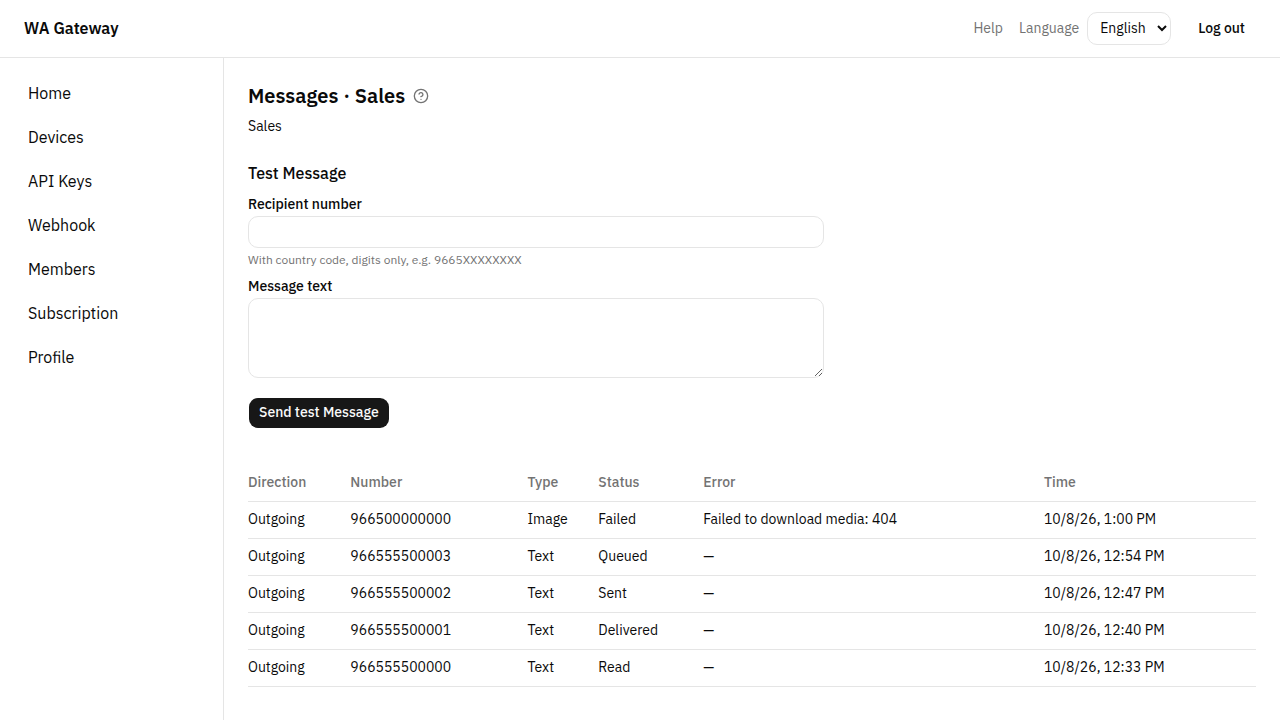
What you see
| Column | Meaning |
|---|---|
| Direction | Outgoing: sent from this Device. |
| Number | The recipient's number. |
| Type | Text, Image, Document or Audio. |
| Status | See below. |
| Error | Why a Message failed, if it did. |
Statuses
| Status | Meaning |
|---|---|
| Queued | Accepted and waiting its turn. Messages from one Device are sent one at a time, a few seconds apart, as a person would send them. |
| Sent | WhatsApp accepted it. |
| Delivered | It reached the recipient's phone. |
| Read | The recipient opened it (only if they allow read receipts). |
| Failed | It couldn't be sent. The Error column says why. |
Send a test Message
Owners and Tenant Admins can send a test Message from the Messages page:
- Enter the Recipient number with its country code, digits only, for example
9665XXXXXXXX(no+, no spaces, no leading zero). - Enter the Message text and choose Send test Message.
The Device must be Connected. A test Message counts toward your monthly Message Quota and the Device's Send Caps, like any other Message.
When sending is refused
| You see | What to do |
|---|---|
| "The Device must be connected to send Messages." | Link the Device again. See Devices. |
| "This Device has reached its Send Cap." | Wait for the hour or day to pass, or raise the cap. |
| "Your Tenant has no active Subscription…" | Renew your Subscription. See Subscription. |
| "Your Plan's monthly Message Quota is reached…" | Sending resumes on the 1st of next month, or after a Plan upgrade. |