Devices
Link a WhatsApp number by scanning a QR code, and keep it connected.
A Device is one WhatsApp number linked to your Tenant. Your software sends Messages from a Device, and Messages sent to that number reach you through it.
Owners and Tenant Admins can add and manage Devices. Members can only see them.
Add a Device
-
Go to Devices.
-
Enter a Device name that helps you recognise it, for example "Sales" or "Support", and choose Add Device.
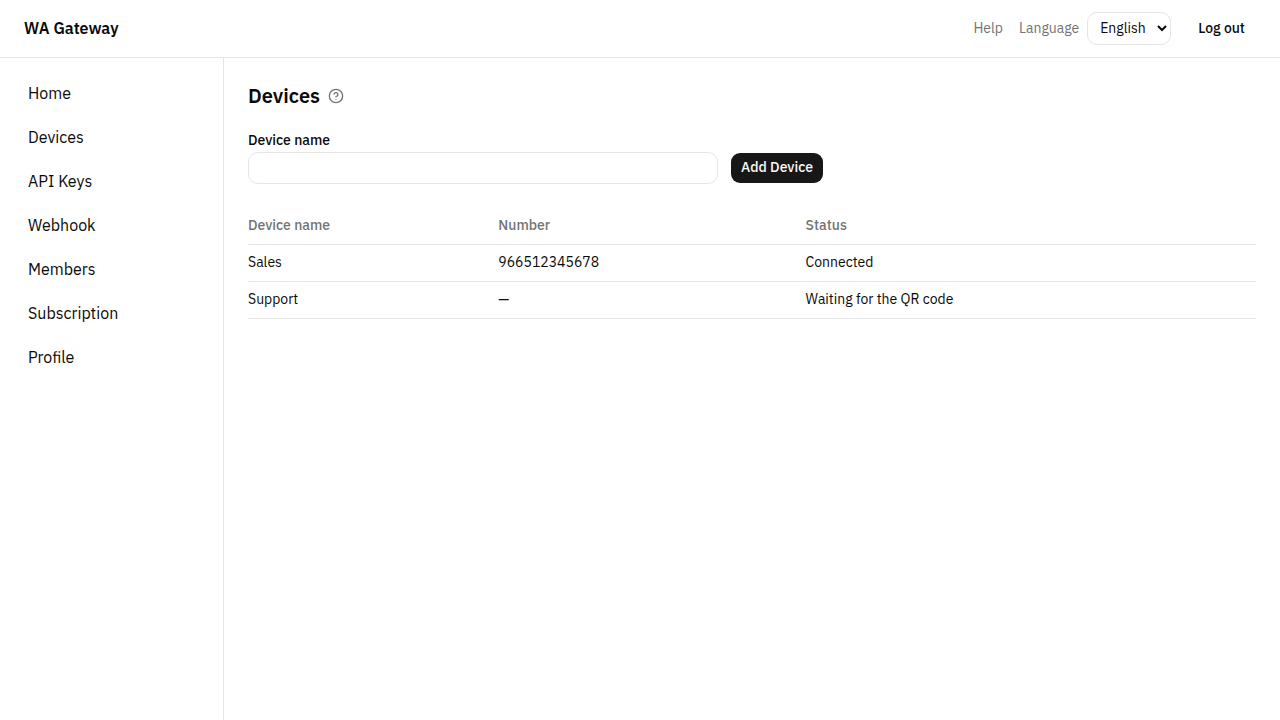
-
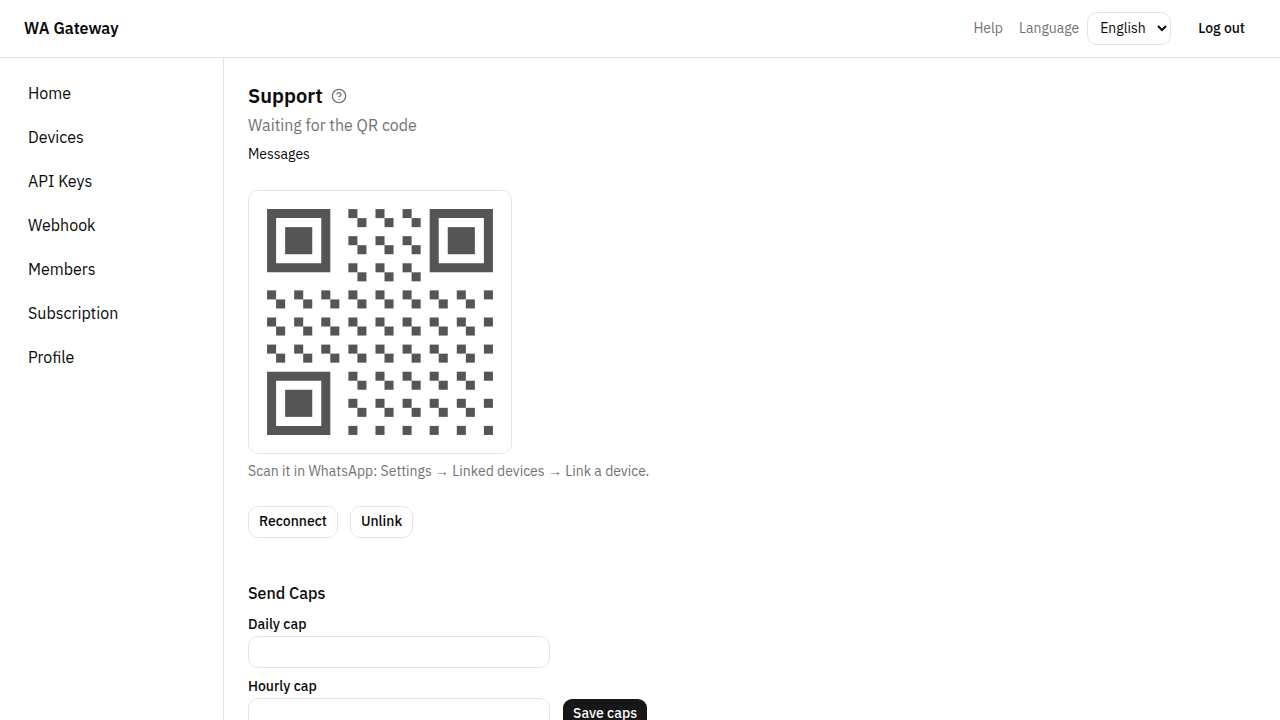
The Device's page opens and shows a QR code after a few seconds.
-
On the phone that has this WhatsApp number, open WhatsApp → Settings → Linked devices → Link a device, and scan the code.
-
The status changes to Connected, and the number appears.
The QR code changes every few seconds. The page updates it by itself, so just scan the one you see.
Your Plan sets how many Devices you may have (the Device Quota). When it is reached, adding a Device fails with "Your Plan's Device Quota is reached." Contact us to upgrade your Plan.
Statuses
| Status | Meaning |
|---|---|
| Waiting for the QR code | The Device has not been linked yet. Scan the QR code. |
| Connected | Ready to send and receive Messages. |
| Disconnected, reconnecting | The connection dropped. We reconnect it by ourselves. |
| Logged out | The number is no longer linked, for example after Unlink, or because someone removed it from WhatsApp on the phone. Choose Reconnect and scan a new QR code. |
Keep the phone switched on and connected to the internet now and then. If WhatsApp doesn't see the phone for a long time, it logs out its linked devices.
Reconnect
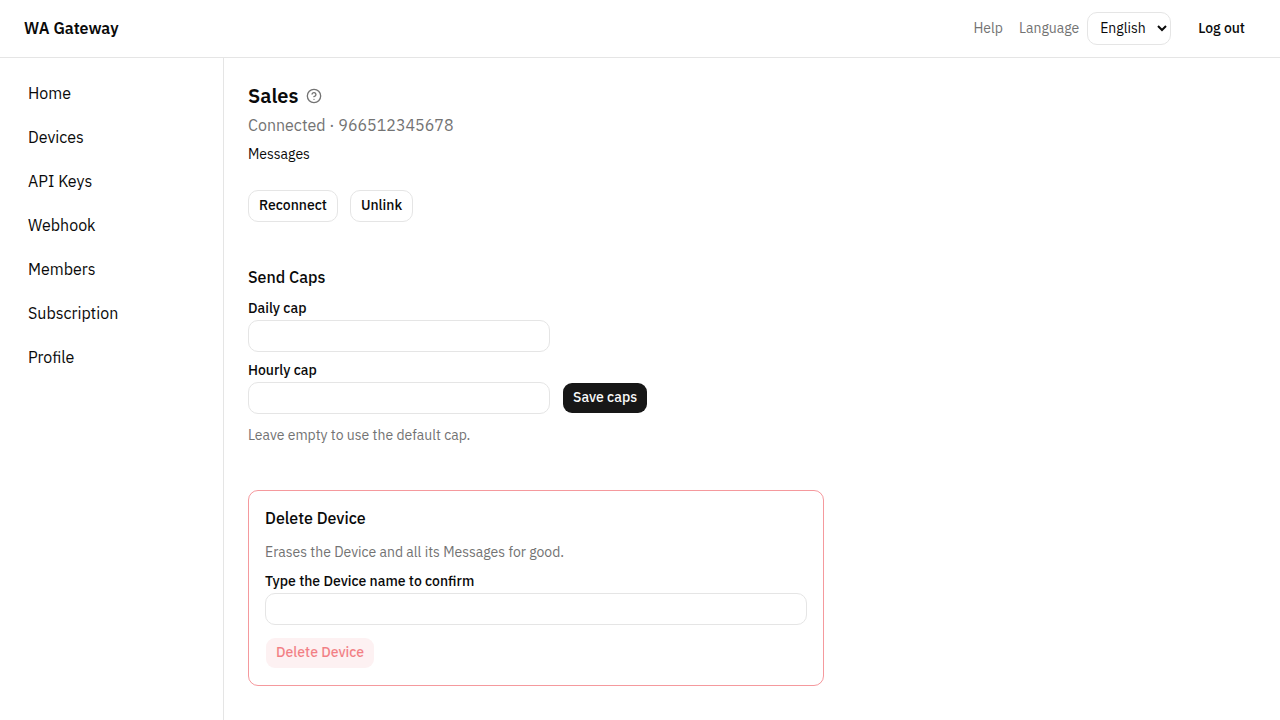
Reconnect starts the connection again. Use it when a Device is Logged out (you then scan a new QR code), or when it stays disconnected for a long time.
Unlink
Unlink logs the number out of WhatsApp. The Device and its Messages are kept, so you can link it again later with Reconnect and a new QR code. You can link the same number or a different one.
Delete Device
Only an Owner can delete a Device. Delete Device unlinks the number and erases the Device together with all its Messages, for good. To confirm, type the Device's name.
Send Caps
Each Device has a Daily cap and an Hourly cap: the most Messages it may send in 24 hours and in one hour. They protect your number from being banned by WhatsApp for sending too much. Leave a field empty to use the default cap. You can't go above the allowed maximum.
When a Device reaches a cap, sending from it stops until the hour or day has passed. Your other Devices are not affected. See Avoid bans.